Import CC Uploader Tasks into CC Sync
The one-time move from the legacy CC Uploader to CC Sync - your tasks travel as the files the old app saves, and CC Sync tells you exactly what changed on the way.
Overview
Already running CC Uploader? CC Sync can take the tasks you built there and convert them - no need to rebuild every task by hand in the wizard. This guide walks you through the whole move: save the configuration in the old app, import it into CC Sync, and a short review at the end so you know exactly what changed.
Save config in CC Uploader
Import into CC Sync
Enter share credentials
Review the report & tasks
Resume
Before you begin
- CC Sync installed and logged in. Not there yet? Start with the CC Sync Quick Start.
- Access to CC Uploader - you save the configuration there, in the old app. If the two apps live on different machines, you'll move the saved file (or files) between them; a USB stick or a network share is plenty - they're small either way.
- Admin Lock unlocked. While task editing is locked in CC Sync, Import Legacy Tasks… is blocked (see Admin Lock).
- Log in to the same organization your CC Uploader tasks uploaded to - during the import, CC Sync re-matches each task's destination against the account you're logged in to.
Note: if IT locked the task list in your old CC Uploader, opening the old app's Admin window in Step 1 requires that old admin password.
Step 1 · Save your tasks from CC Uploader
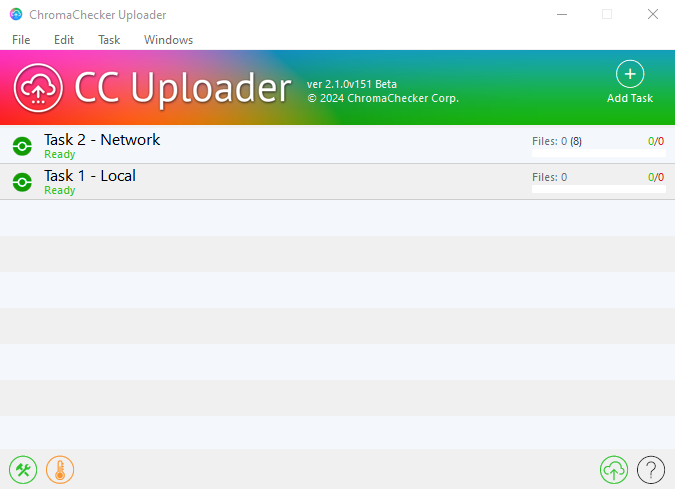
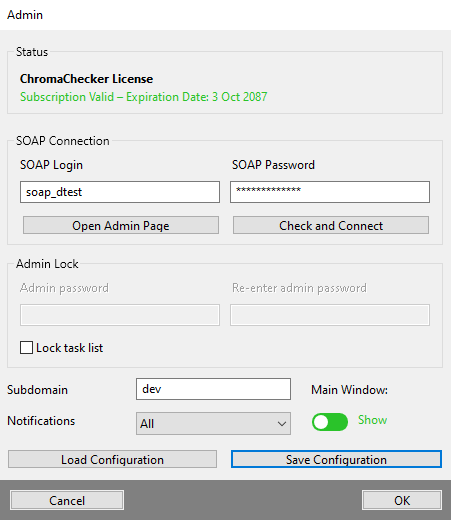
Every CC Uploader version does this the same way: open the Admin window and press Save Configuration. That's the last thing you do in the old app.
The screenshots below are from CC Uploader 2.1.0. On 1.0.x the windows and buttons look a bit different, but the general idea is the same - open the Admin panel and save the configuration.
 1
1
- 1 Click the tools button in the bottom-left corner of the CC Uploader window. The Admin window opens.
 1
1
- 1 Click Save Configuration.
 1
2
1
2
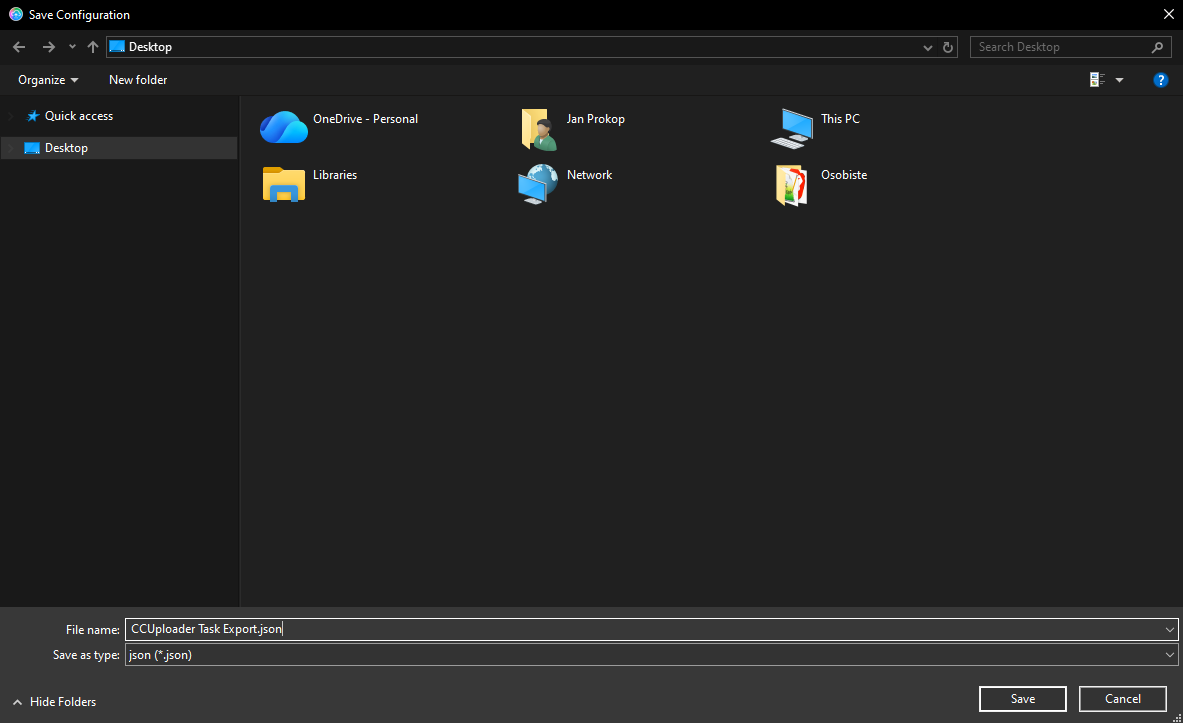
- 1 Keep the suggested name - here CCUploader Task Export.json - or type your own, and pick a location you'll find again (the Desktop works fine).
- 2 Click Save. On this version that single file now holds your whole task list. On 1.0.x you instead get one .CCT file per task, each named after the task and the moment it was saved - collect them all, none of them is optional.
Meet the example tasks
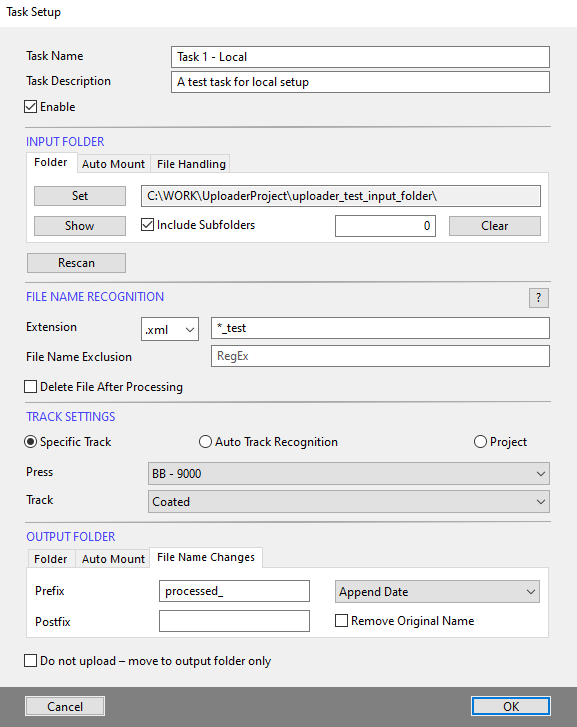
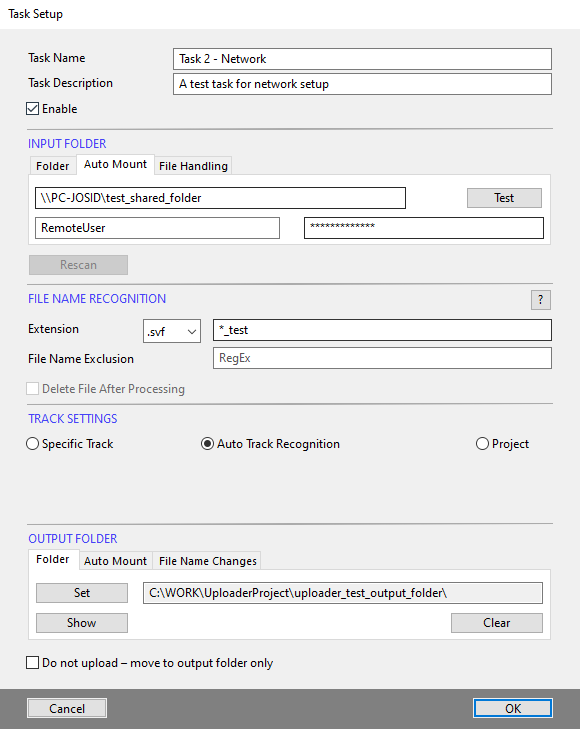
Through this guide we'll follow two tasks built in CC Uploader - one watching a local folder, one watching a network share - so you can see exactly what the import does with each.
 1
1
- 1 This task watches a network share (the Auto Mount tab) - during the import, CC Sync will ask for this share's credentials (Step 3).
Step 2 · Import into CC Sync
Over to CC Sync.
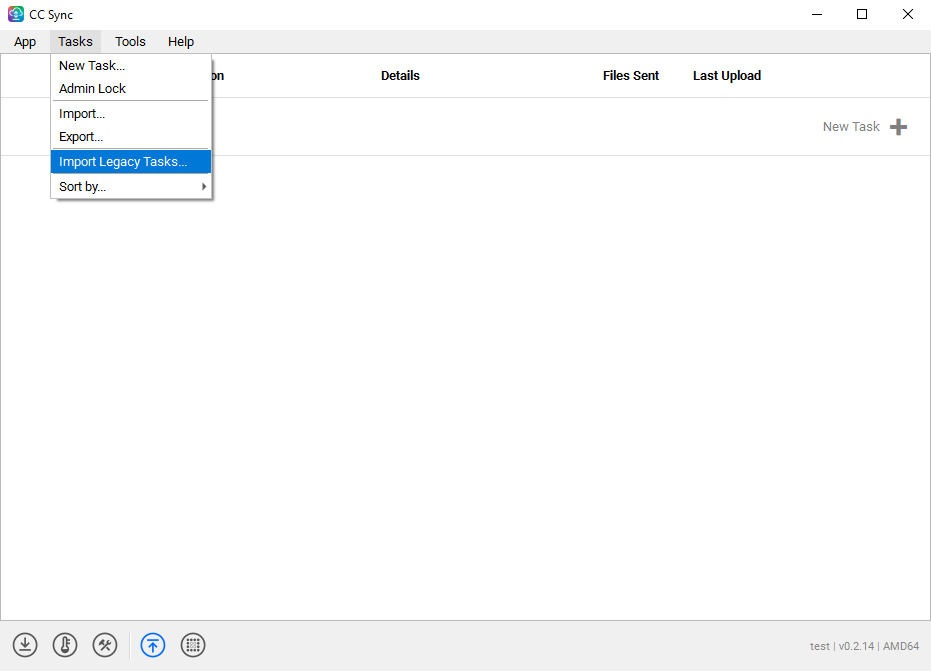 1
2
1
2
- 1 Open the Tasks menu…
- 2 …and click Import Legacy Tasks…
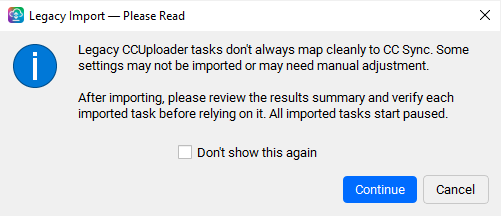
Before anything happens, CC Sync shows a short heads-up:
 1
2
3
1
2
3
- 1 Read it once: not everything maps 1‑to‑1, a report will list the differences, and imported tasks start paused.
- 2 Optional: tick Don't show this again to skip this note on future imports.
- 3 Click Continue.
 1
2
1
2
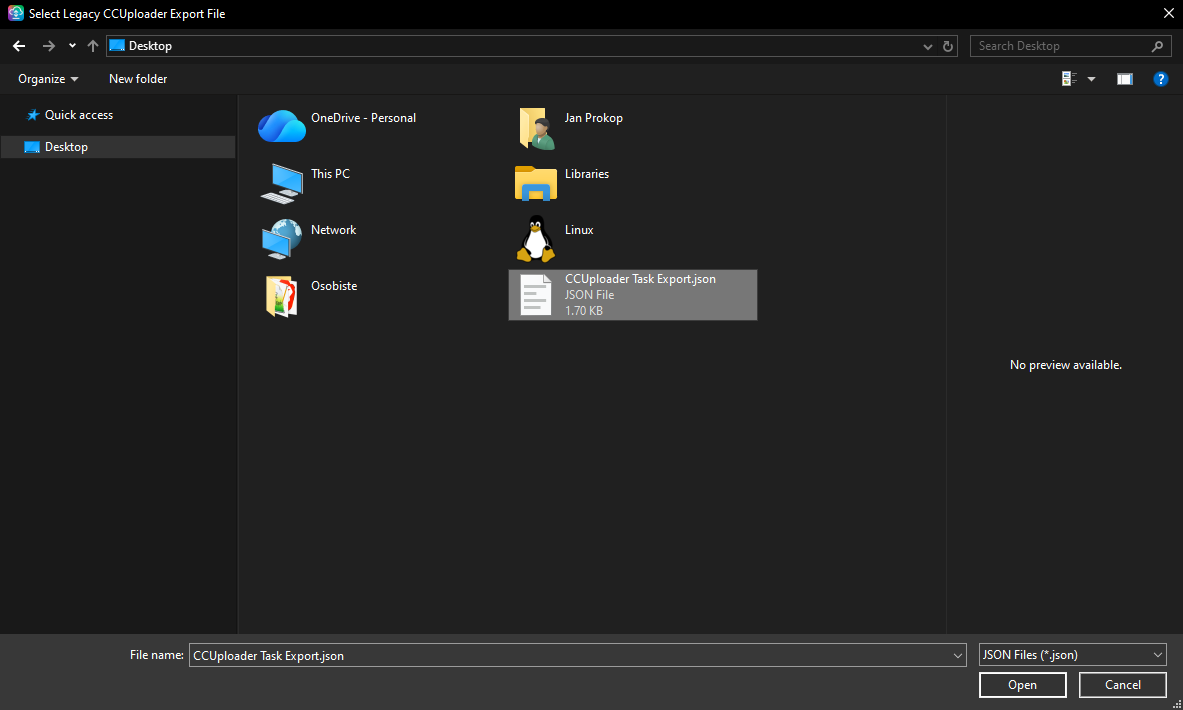
- 1 Select what you saved in Step 1. The picker takes as many files as you like - so on 1.0.x, select every .CCT file (Ctrl+A in that folder, or Ctrl-click the ones you want).
- 2 …and click Open.
A progress bar runs while CC Sync converts your tasks and re-matches their destinations against the server. Everything you selected is handled in one pass: task names stay unique across the whole batch (a second Press 1 arrives as Press 1_1), and a file that can't be read is listed as Skipped in the report while the others carry on. If any task watches a network share, the import pauses to ask for credentials - that's next.
Step 3 · Network folders ask for credentials
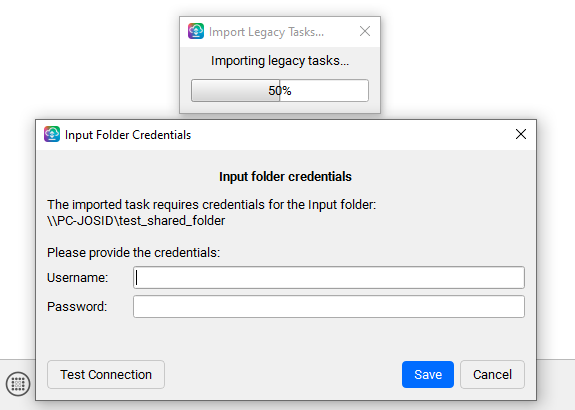
Network-share credentials don't travel with the saved configuration, so CC Sync asks for them once per network folder, and the dialog names the folder it's asking about. What you enter is saved in your operating system's secure storage and reused automatically from then on, including the silent re-mount after a network hiccup.
 1
2
3
1
2
3
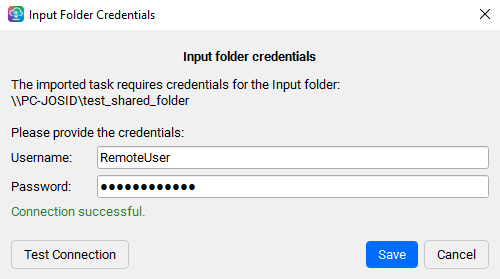
- 1 Fill in the username and password that have access to this share.
- 2 Press Test Connection to check the path and credentials.
- 3 When the test passes, press Save - the import continues with the next task.
 1
1
- 1 Connection successful. - now press Save. A red message instead? Fix the credentials (or the share path) and test again - don't save until the test passes.
If you press Cancel instead, that one task is dropped from the import (the report lists it as Error) - the rest continue normally. Nothing is lost: sort out the credentials and run the import again, or create that task manually.
Step 4 · Read the import report
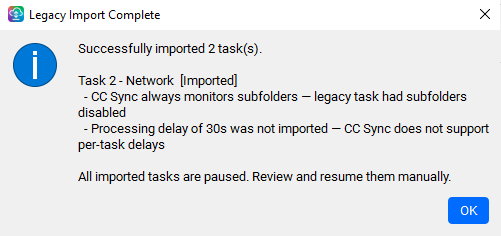
When the run finishes, Legacy Import Complete sums up the import: the headline says how many tasks came through, and each task that changed on the way gets its notes below. A task that converted 1‑to‑1 isn't listed - it's simply counted in the headline. Anything that couldn't be read at all is counted as Skipped and named with its reason, so a single unreadable file never hides in the total.
Read the notes. Most are purely informational: CC Sync simply behaves differently, and no action is needed. A note only requires action when it says something was not found, asks you to configure something manually, or asks you to confirm a setting - typically a destination that no longer exists on your account, or one the old file didn't describe fully enough. That task still imports; you'll fix it in the next step.
 1
2
3
1
2
3
- 1 The headline - how many tasks were imported.
- 2 Notes appear only for tasks with differences - here Task 2 (Task 1 imported 1‑to‑1, so it isn't listed). Both notes here are informational, so nothing needs fixing: they just say where CC Sync does things its own way.
- 3 The house rule: every imported task is paused until you resume it.
Step 5 · Review each task
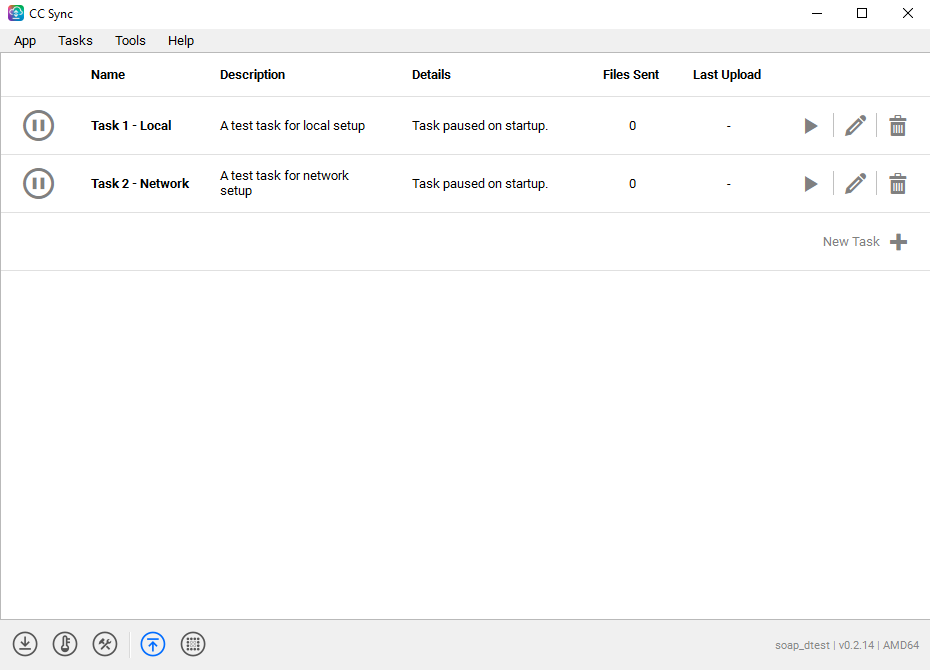
Back in the Task Panel, your imported tasks are waiting - paused (“Task paused on startup.”).
 1
2
3
1
2
3
- 1 Paused status - the task is imported but not watching anything yet.
- 2 Double-click a row to open the task's summary for review…
- 3 …or press the pencil - same thing.
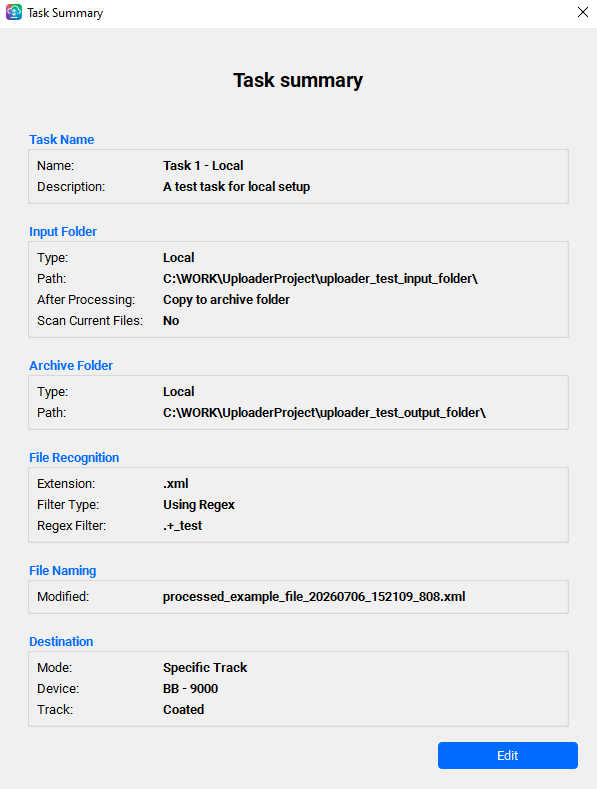
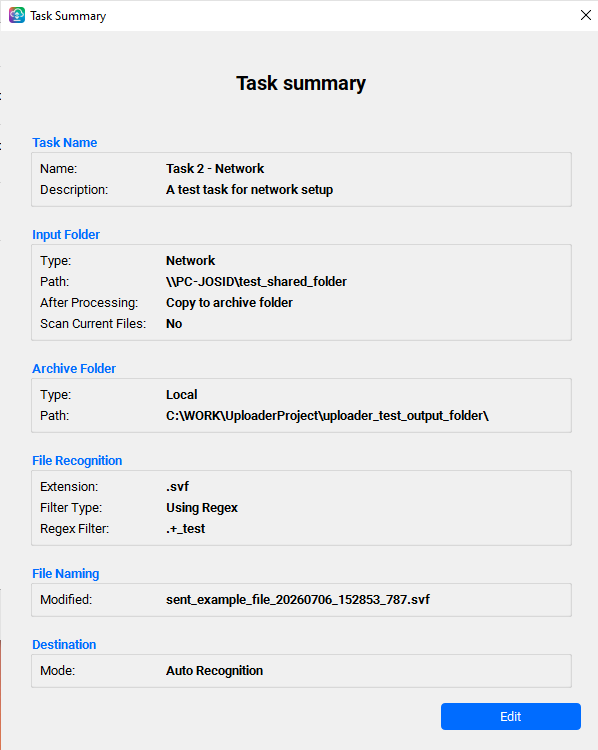
The Task Summary groups every setting into boxes - the same view the wizard shows before creating a task. Walk them top to bottom against what the old task did: name, folders, file recognition (old wildcards like *_test come through as the equivalent regex .+_test), naming, destination.
 1
2
1
2
- 1 The destination was re-matched by name - here the old task's press and track were found on the account (BB - 9000 / Coated).
- 2 Press Edit to walk the whole task through the prefilled wizard - or click any single box to quick-edit just that page.
 1
1
- 1 The network share came through - it uses the credentials you entered in Step 3.
If the report flagged a task's destination - not found, or a request to configure or confirm it - this is where you fix it: click the Destination box, it opens in quick-edit, and pick the right device, track or project. The same goes for any other box the report pointed at, such as Archive. Save, and the task is complete.
Step 6 · Resume your tasks
Reviewed? Then let them run.
1
- 1 Press play on a task - it starts watching its folder immediately, and Files Sent starts counting like for any other CC Sync task.
From here on they're ordinary CC Sync tasks - pause, edit or delete them from the row, and see the uploaded data in the CC Dashboard.
What carries over (and what doesn't)
The quick reference behind the report notes - it holds whichever CC Uploader you came from.
Converted automatically
- Task names & descriptions - a name that already exists in CC Sync, or that turns up twice in the same import, gets _1, _2, … appended.
- Input folder - local or network.
- Output folder → CC Sync's Archive folder, along with the old “delete after upload” choice: keep the original and it becomes a copy, delete it and it becomes a move.
- File extension - an extension CC Sync doesn't list becomes Other with your string kept; an empty one defaults to .txt.
- File-name pattern - old wildcards become the equivalent regex, and an exclusion pattern is folded into the same rule.
- Naming rules - prefix, full rename, and the old “add date to file name” option.
- Destination - re-matched live against the account you're logged in to.
Not carried over
- Network share passwords - no CC Uploader version stores them, so you re-enter them once during the import (Step 3).
- Per-task processing delay - CC Sync has none.
- Postfix - kept only if the old task also replaced the original name.
- Running state - every imported task starts paused, by design.
Each of these differences shows up as a note in the import report, so nothing changes silently.
Next steps
Your tasks are home. From here:
- Manage them day to day → Managing your tasks in the Quick Start
- See the data they upload → The CC Dashboard
- Something doesn't look right? → Getting help (Run Diagnostics)
- The legacy app's reference page (for machines staying on CC Uploader) → CC Uploader